
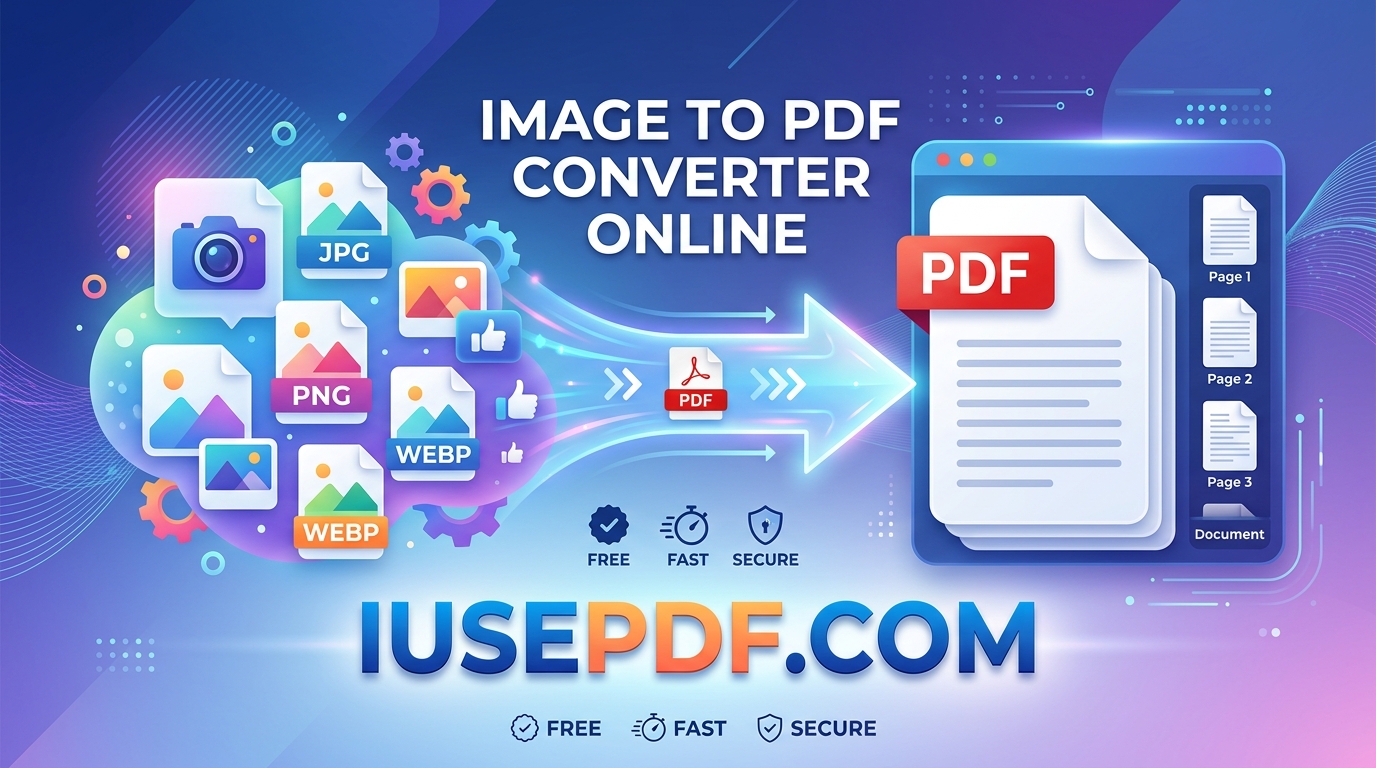
Generating PDFs from images online is a great way to preserve the original quality of your content.Converting images to PDF online is a wonderful way to preserve the original content quality.
So, you have to upload a document, application, or receipts, and the portal is only accepting PDFs—so all you have are screenshots of various applications on your phone or computer, and they are all JPG or PNG.
There’s no need to download big software or to use tricky photo editing applications, since you can convert the photos to a clean PDF directly in your browser.
Follow this step-by-step guide to learn how to save your images as PDF online for free in just a few clicks with iusepdf.com.
Why Convert Images to PDF?
But before we get to the steps, let’s first discuss why it’s easier to deal with images in PDF:
PDF is preferred by most of the job portals, government forms, and university portals.
Send a single, organized file (JPEG) instead of 10 individual files.
Consistent View: PDFs retain format on all devices, be it laptop, tablet or smartphone.
Creating standardised images in a PDF format can often minimise the overall size of the message, which in turn will lead to smoother email attachments.
You can convert a JPG/PNG to PDF online at iusepdf.com.To convert JPG/PNG to PDF, use iusepdf.com.
To convert your files with iusepdf.com, it’s easy and you don’t need technical skills.
Step 1: Go to the iusepdf.com Tool: Go to your web browser on your desktop device or mobile device.
Go to iusepdf.com and click on the Image to PDF converter tool on the main menu or homepage grid.
- Upload Your Image Files: Supports JPEG, PNG, WEBP and more.
Select the images you want to convert by clicking the Select Images button or dragging and dropping them directly into the conversion box. Single or multiple pictures can be uploaded in one go. - Arrange & Adjust Options: Optional customization.
Drag images and arrange them in the desired order. Change page orientation (portrait or landscape) and/or custom page margins, as desired. - Convert & Download: Generate files instantly.
Click on Convert to PDF. After the processing is done, in a few seconds, click on Download PDF to download your new file.
Here are the best features of the iusepdf.comsoftware that make it stand out:
No Software Installation Required: It does not require bloated extensions to work but works directly inside Chrome, Safari, Firefox or Edge.
- Mobile Friendly: Runs flawlessly on iPhone, Android and desktop devices.
- Quick Processing: you will not have to queue up for long periods of time for the files to be converted.
The security of uploaded files is guaranteed and they are automatically deleted after being processed.
These are a few tips for best quality PDF conversions:
To ensure that your photos have text that is clear and readable, use high resolution photos.
For multi-page documents such as multi-page forms and book scans, ensure that Pages are in the correct order before converting, by checking the preview window.
Crop out any unwanted background material from your picture(s) in advance to ensure your PDF is professional appearing.
Final Thoughts
You don’t need to be frustrated when creating a PDF that’s a single or multiple pages from a image. Things such as iusepdf.com eliminate the hassle with regard to files so you can manage your administrative work without the anxiety.
Try this next time you want to convert photos, receipts or notes into a shareable PDF!